Manual
Updates
Omarchy and your packages are kept up to date via Update > Omarchy in the Omarchy menu (Super + Space).
Omarchy itself is installed as regular pacman packages from the Omarchy Package Repository, so an update installs the latest Omarchy release, runs any pending migrations to get your system in sync with the latest, and updates all system packages from the Omarchy Arch Mirror and AUR (if you have installed any AUR packages).
When new releases are made, a circle arrow icon will appear to the right of your clock. Click it and the update process will start.

Four channels
Omarchy is updated along four channels: stable, RC, edge, and dev. New installations start on the stable channel, which tracks the official releases, as well as the stable Omarchy Arch mirror that’s running one month behind the latest, so we can catch any new incompatibilities that require config changes before they cause problems for people.
But if you’d like to help spot those potential issues, you can run on the edge channel. That’ll keep your Omarchy packages tracking the latest development builds, and lets you update to the latest Arch packages as soon as they’re available. You should only do this if you’re experienced with Linux, and know how to recover a system that has problems.
Before any new major release, we’ll be doing final validation using the RC channel. If you’re interested in helping with final polishing, come hang out in #omarchy-release-candidates on the Discord.
Finally, there’s the dev channel, which links Omarchy directly to a git checkout of the source code in ~/omarchy, combined with the edge packages. You should only use this channel if you’re an experienced Linux user, working directly on Omarchy, and willing to tolerate breakage.
You can switch between channels using Update > Channel from the Omarchy menu (or omarchy-channel-set in the terminal).
Firmware updates
Your packages aren’t the only thing that goes stale. Many laptops and peripherals ship BIOS, SSD, and dock firmware through the Linux Vendor Firmware Service, and Update > Firmware in the Omarchy menu will fetch and install whatever your hardware has waiting. It installs fwupd the first time you run it. Plenty of firmware can only be written during a reboot, so don’t be surprised to be asked for one.
Warning about direct pacman/yay updates
If you’re already familiar with Arch, you might be tempted to just run pacman -Syu or yay -Syu yourself, but if you do that, you’ll miss the snapshot, migrations, and configuration updates that Omarchy runs together with new packages. That’s why Omarchy will actually stop a direct system upgrade and point you to omarchy update instead. (If you really know what you’re doing, the guard will tell you how to bypass it for a single transaction.)
Rolling back bad updates
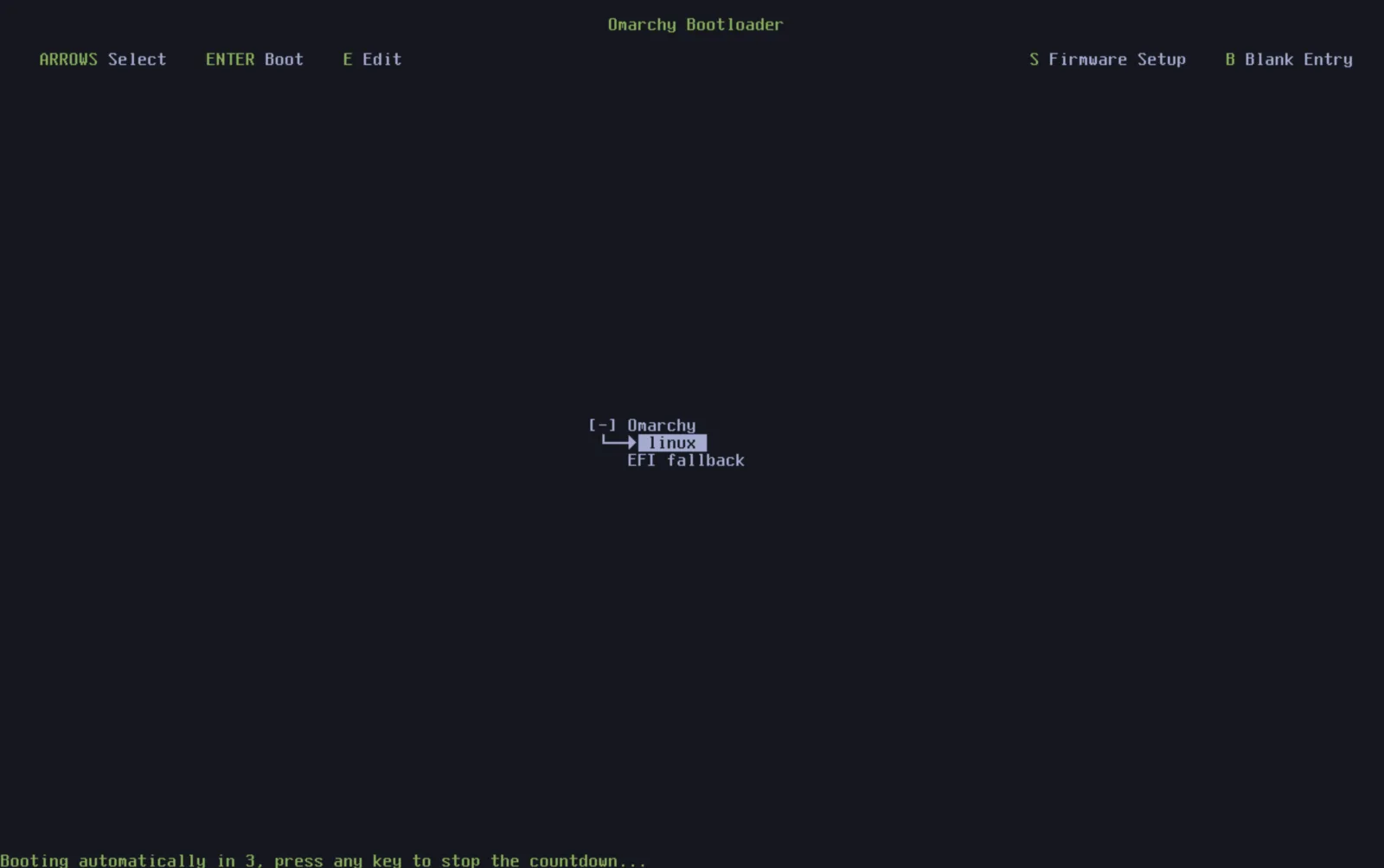
If you ever have a problem after doing an update, you can rollback your system to the snapshot taken before the update. Just restart and pick the snapshot in the boot loading menu from before you started the update.
If somehow your configuration files have been corrupted, you can also perform an Omarchy reinstall using omarchy reinstall in the terminal. This will reinstall all the default Omarchy packages, put you on stable and downgrade any packages that are too new, and reset all the configuration files. Note that all your user config changes to the Omarchy defaults will be overwritten doing this!