Manual
System snapshots
We create snapshots automatically on every Omarchy update, but should you want to create your own, you can use omarchy-snapshot create.
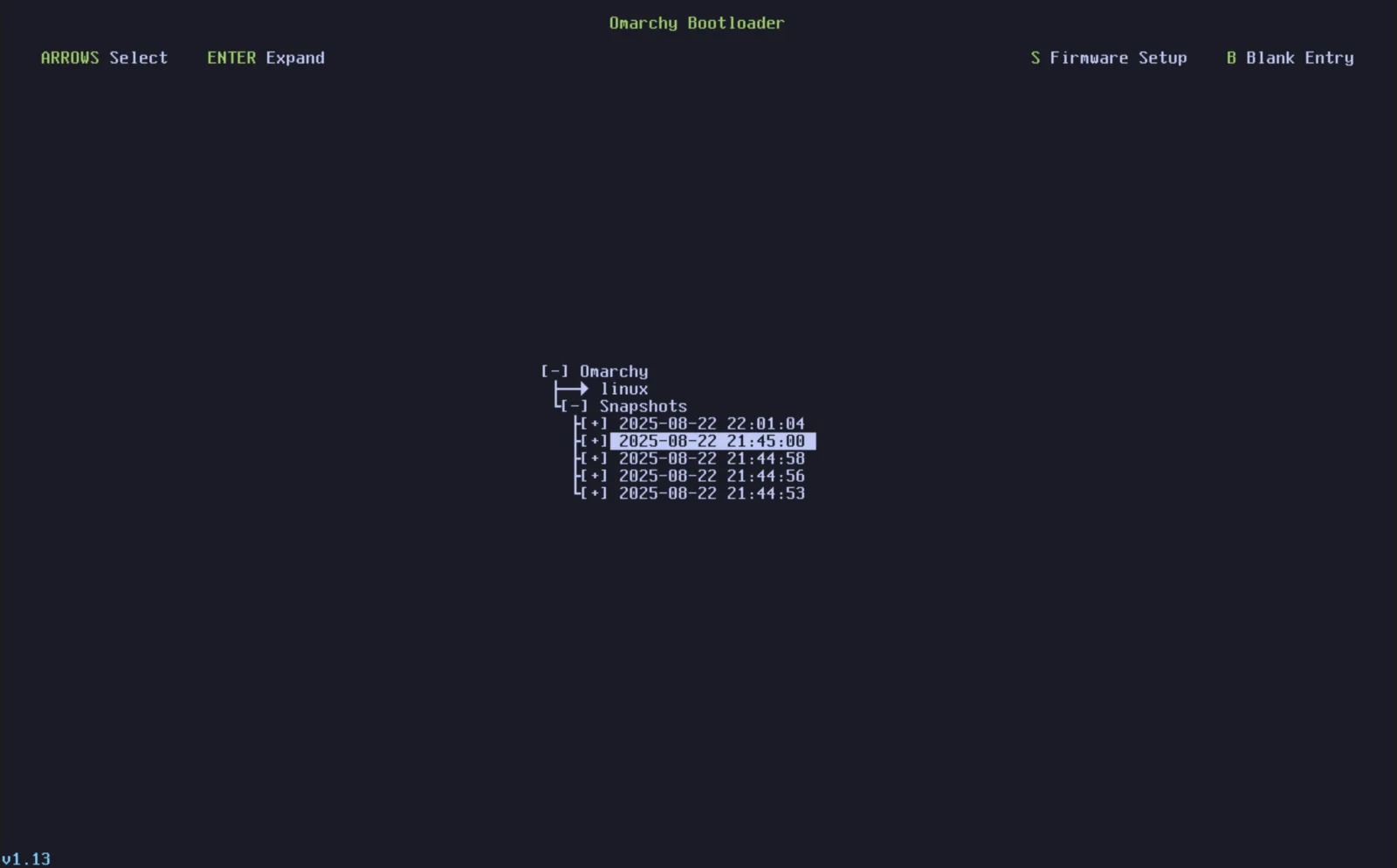
To boot and restore a snapshot, you select it from the Limine boot loader. (If you’re currently booting straight into the Omarchy decryption screen, you’ll need to select Limine as a boot option via the BIOS first).
From that screen, choose the snapshot you’d like to boot into based on the date and version. The version of Omarchy at the time of the snapshot can be seen at the bottom left corner.
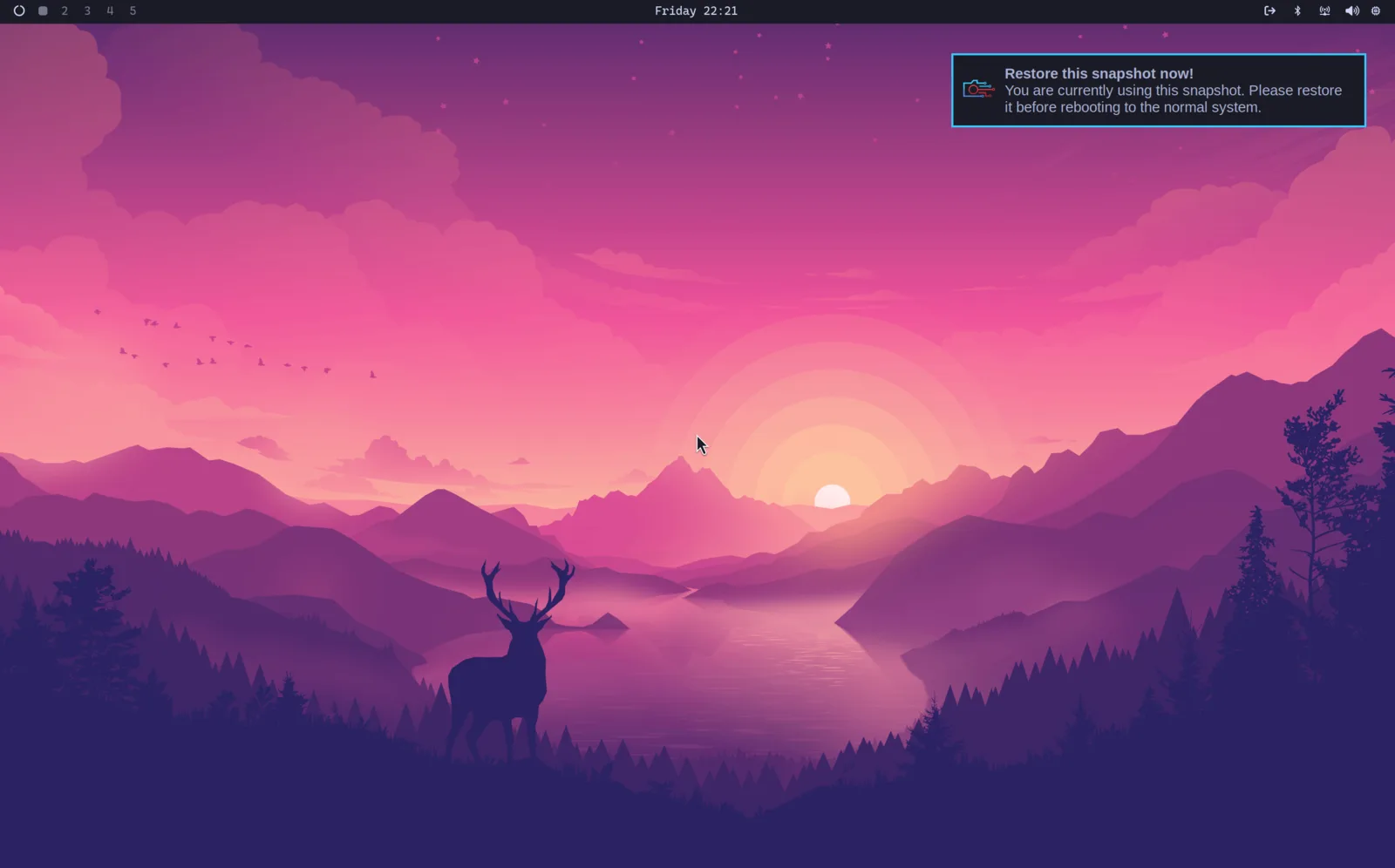
When you arrive inside, a notification will popup notifying you that you’re in a bootable snapshot and if you click it, will start the restoration process. Alternatively, you can utilize omarchy-snapshot restore.
This will restore your root filesystem, but not your /home. So it works for reverting a broken system update, but not for recovering lost personal files.
This also means that your ~/.config directory is kept as-is. So if you’re rolling back to an earlier version of a library or application that stores configuration files in a new format, you’ll have to sort that out manually.
Note: This feature is only available on installations using the Limine boot loader, which has been the default since Omarchy 2.0. It’s not available if you’re on GRUB or systemd-boot.
Skipping the boot menu
If you never touch the boot menu and just want the machine to go straight to the decryption screen, run Setup > Direct Boot in the Omarchy menu. That adds an EFI entry pointing directly at Omarchy, so the firmware boots it without stopping at Limine.
The trade-off is the one mentioned at the top: with direct boot on, getting to a snapshot means picking Limine from your BIOS boot menu first. Run Setup > Direct Boot again to remove the entry and go back to booting through Limine. Some firmware doesn’t take kindly to custom EFI entries, so the setup refuses to run on American Megatrends and Apple firmware.